Running a site
Users and roles
Let people in, give each the smallest role that lets them work, build roles of your own, and keep a way in for when something goes wrong.
Tidewater’s control panel has several kinds of people in it, and each needs something different: you administer the site, marketing runs the blog and landing pages, a freelance writer drafts posts, and the founders only look. Roles are how that is expressed.
After reading this guide, you will know:
- How to add someone, from the control panel or a terminal.
- What each built-in role can do.
- How to build a role of your own.
- The rule that keeps a site from locking itself out.
1. Adding someone
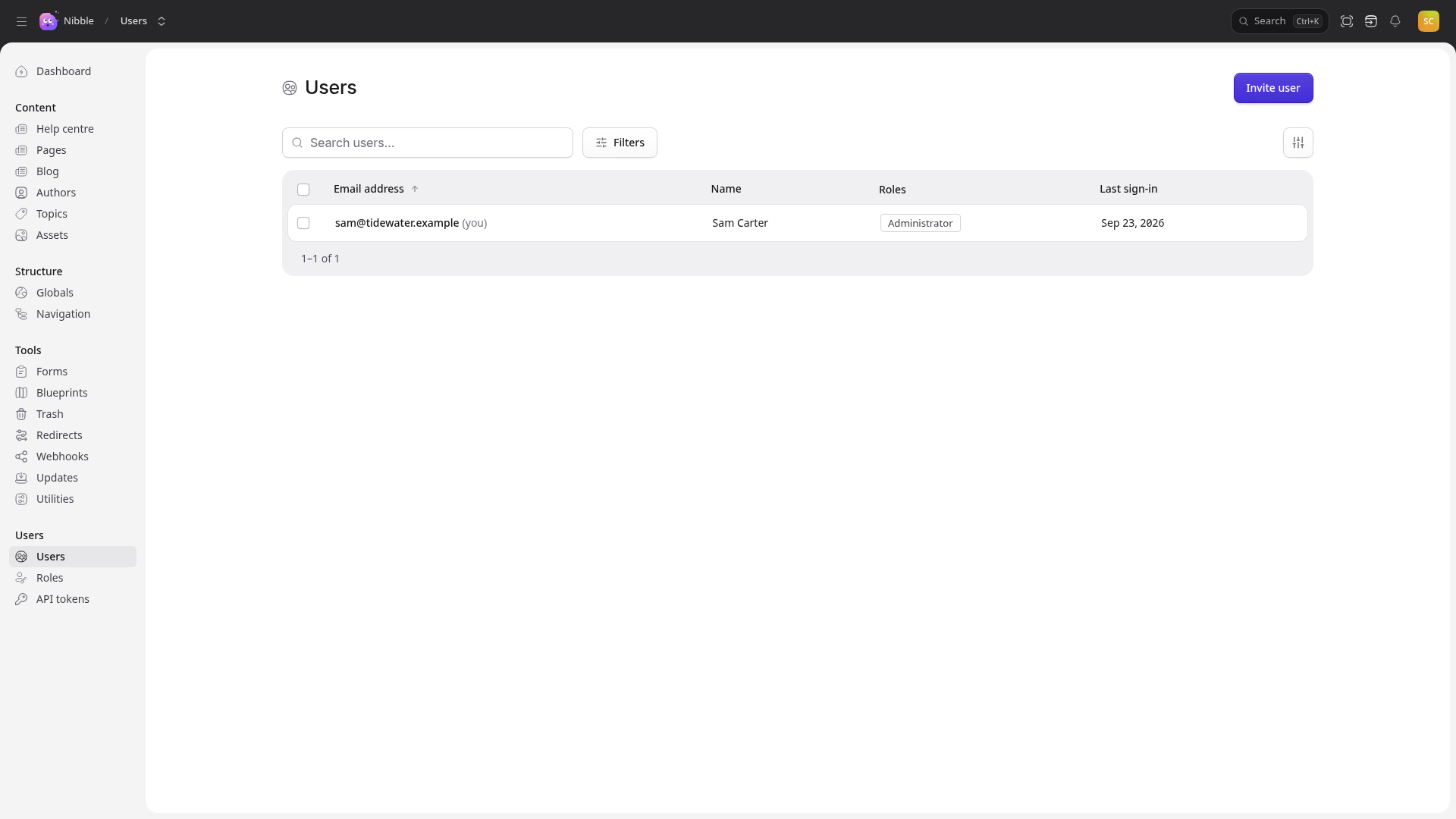
From the control panel. Open Users, choose to invite someone, and give their name, email address and role. They get an email with a link and set their own password, so nobody ever sends a password to anyone.
From a terminal — for the very first account, or a server where mail is not set up yet:
bin/rails nibble:admin:create
It asks for a role, then a name, an email address and a password. On a deployed server, run it in the container:
bin/kamal app exec -i 'bin/rails nibble:admin:create'
Important
Passwords need at least 12 characters, with a lowercase letter, an uppercase letter, a number and a symbol. The rule is the same everywhere — invitations, resets, and people changing their own.
2. The roles that ship
| Role | Can |
|---|---|
| Administrator | everything, including users, roles and settings |
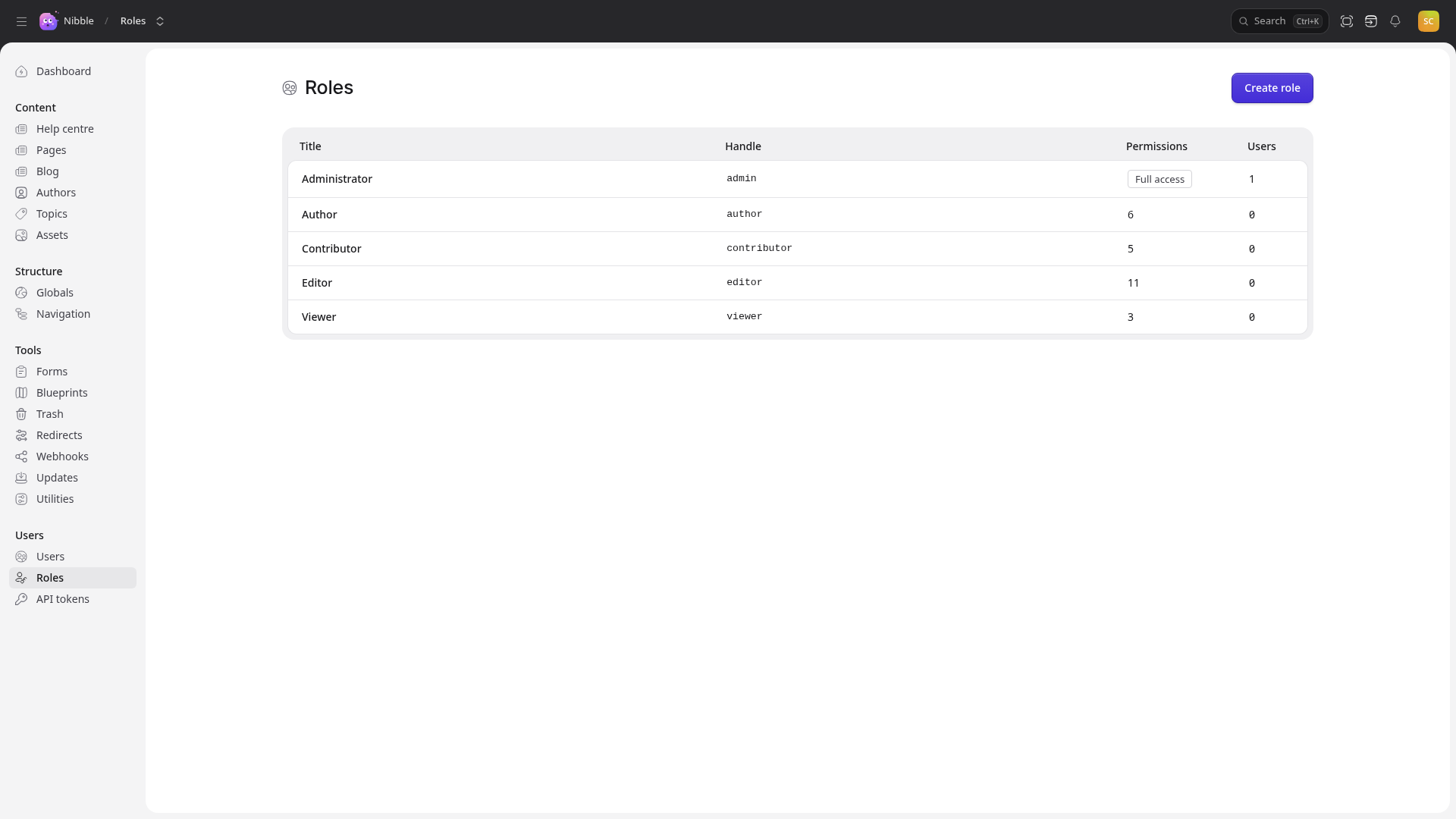
| Editor | all content, globals, menus, assets and forms; redirects, the trash, utilities, and approving reviews |
| Author | create entries and edit their own; see terms; upload assets |
| Contributor | create entries and edit their own; see terms and assets |
| Viewer | look, not touch |
At Tidewater, marketing are Editors, the freelance writer is an Author — able to upload the images a post needs, but not to publish — and the founders are Viewers.
Tip
Give people the smallest role that lets them do their job. It is not about distrust: a smaller role means fewer ways to break something by accident on a busy afternoon.
A person can hold more than one role; they can do whatever any of them allows.
3. Roles of your own
Open Roles and every ability is a checkbox, grouped by what it touches — each collection, each taxonomy, assets, forms, users, settings. Create a role, tick what it allows, and assign it.
Abilities are fine-grained on purpose. “Can write blog posts but not touch landing pages”, “can publish but not delete”, “can read demo requests but not export them” are all expressible without code. For Tidewater, you might make a Sales role that can only read the Book a demo form’s submissions.
Administrator is the exception. It grants everything rather than listing abilities, which is why a new feature is immediately available to administrators, and has to be granted to everyone else on purpose.
4. The last way in
At least one role must grant full access, and someone must hold it. Nibble refuses to delete the last one or to strip what makes it complete.
Caution
A site with no administrator cannot be repaired from the control panel. It needs someone at a terminal with
bin/rails nibble:admin:create — on a server, through bin/kamal app exec. Keep two administrators, so one
person’s lost phone is not the site’s problem.
5. Signing in, and staying safe
Each person manages their own password, their signed-in devices and two-factor authentication from their account.
- Sensitive screens ask for the password again before they open: users, roles, API tokens, imports.
- A while without activity locks the control panel until the password is entered again, with a warning first.
6. Removing someone
Deleting a person under Users ends their access and their sessions at once. What they wrote stays where it is: entries record who created and last changed them, and that history survives the account.