Modelling content
Globals and navigation
Site-wide fields every page can read, and the menus editors arrange — declared in YAML, read by the theme in one line.
Some content belongs to the whole site rather than to one page: Tidewater’s name, its support address, the menu across the top. Globals and navigation hold those.
After reading this guide, you will know:
- Which globals Nibble ships, and how to declare one of your own.
- How to declare a menu and limit what it can link to.
- How a menu can be built from a folder of files instead.
- How a theme reads both.
1. Globals
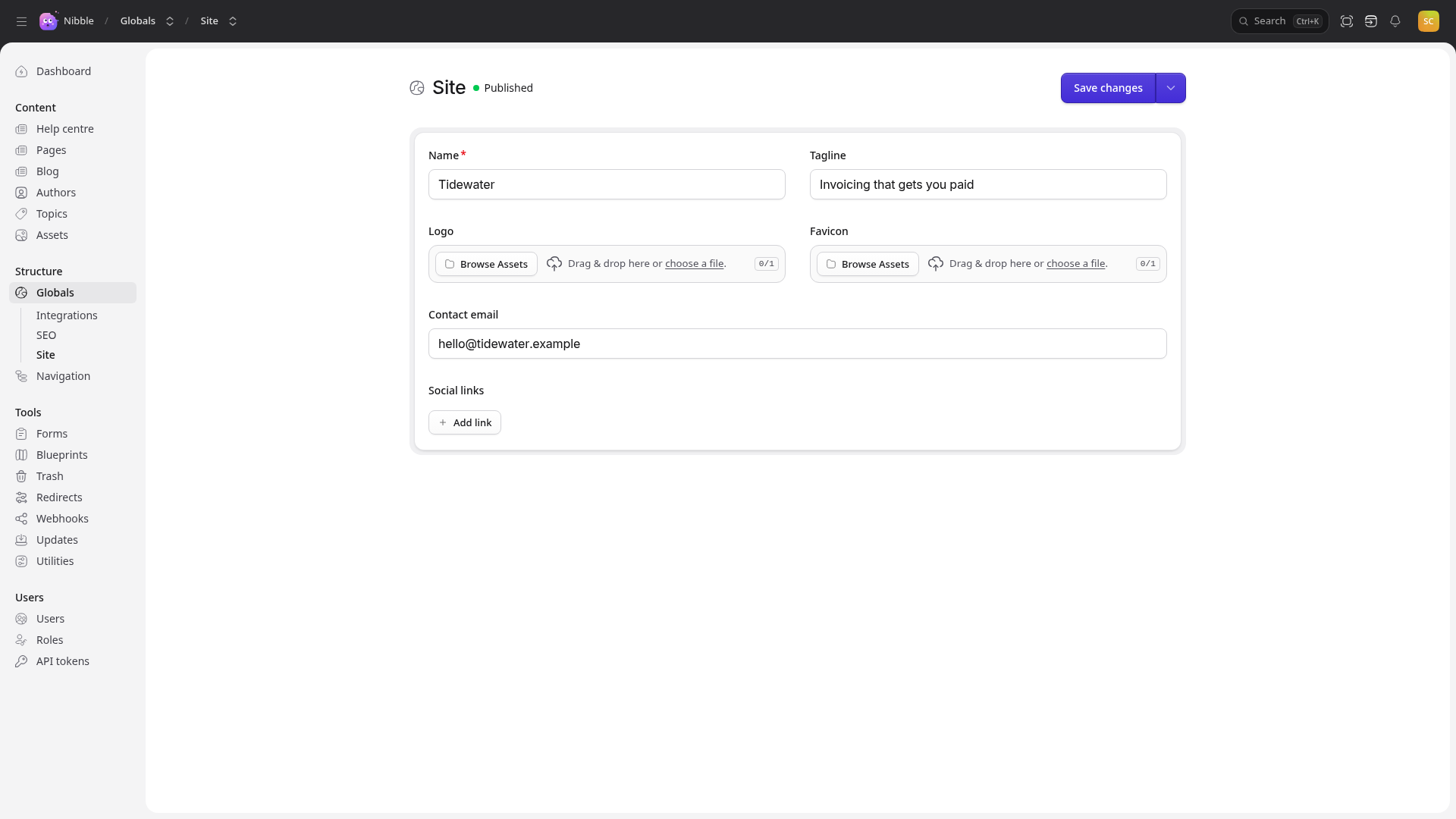
A global is one set of fields for the whole site — not a page, not a list. Nibble ships three:
| Global | Holds |
|---|---|
site |
the site’s name, tagline, logo, favicon, contact address and social links |
seo |
the title template, default description and share image, and verification tags |
integrations |
analytics IDs, head and body code, CAPTCHA keys, and who mail comes from |
Editors fill them in under Globals.
1.1 A global of your own
Tidewater shows its company details in the footer and on invoices’ help pages. Generate a global:
bin/rails nibble:generate:global company
and give it fields. A global’s blueprint is written inline:
# site/schema/globals/company.yml
schema: 1
title: Company
blueprint:
  title: Company
  tabs:
    main:
      sections:
        - fields:
            - handle: legal_name
              field: { type: text, required: true }
            - handle: address
              field: { type: textarea }
            - handle: support_email
              field: { type: text, input_type: email }
Add localizable: true when the values differ per language.
Warning
Globals are the wrong place for secrets. Every page receives every global except integrations — which Nibble
keeps out of the page because it holds keys — so anything in your own global can end up in a visitor’s browser.
API keys belong in credentials or the environment.
2. Navigation
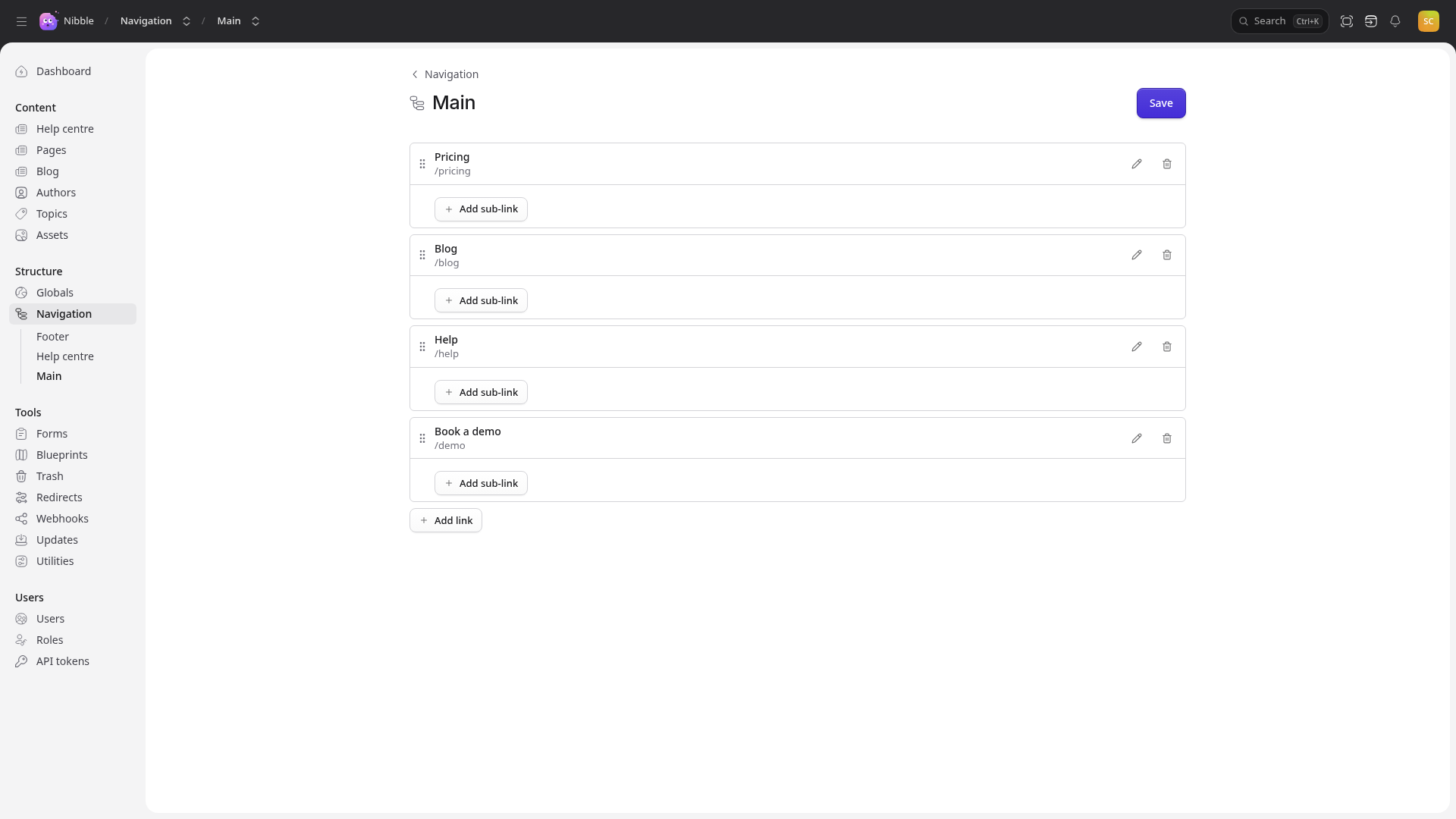
A navigation is a menu: a tree of links editors arrange by dragging. Nibble ships main and footer.
# site/schema/navigation/main.yml
schema: 1
title: Main
max_depth: 2
collections: [pages, posts]
| Key | What it does |
|---|---|
title |
required; what the control panel calls it |
max_depth |
how deep items may nest — a header with dropdowns wants 2 |
collections, taxonomies |
what an item may link to; anything else is a typed URL |
Tidewater’s main menu links to the Pricing and Book a demo pages, and to /blog and /help by URL.
Tip
Link to an entry rather than typing its URL whenever you can. If the page’s slug changes or it moves under another page, an entry link follows it; a typed URL has to be found and fixed by hand.
2.1 A menu built from files
When a navigation has the same handle as a collection written as files, its tree is built
from the folders instead: a folder’s index.md is a branch, the files in it are its children, and order in their
frontmatter sorts them. That is Tidewater’s help centre sidebar:
# site/schema/navigation/help.yml
schema: 1
title: Help centre
max_depth: 3
Warning
A menu built from files still appears under Navigation in the control panel, as an empty menu with Add link and Save. Anything saved there is ignored — the site always reads the folders. Change the files instead.
3. Reading them in a theme
Every page receives every global except integrations, and every navigation, so a component anywhere can read
them without props being passed down:
<script setup lang="ts">
import { useGlobals, useNavigation } from '@nibble'

const site = useGlobals<{ name: string; contact_email?: string }>('site')
const main = useNavigation('main')
</script>

<template>
  <header>
    <a href="/">{{ site.name }}</a>
    <nav>
      <a v-for="link in main" :key="link.url" :href="link.url">{{ link.title }}</a>
    </nav>
  </header>
</template>
Each link has a title, a url and children, which is always a list — so a nested menu is the same loop one level
down, whether the menu was arranged by an editor or built from files. See Theme components.
Note
A page’s cache is tagged with the globals and menus it read, so editing the footer clears every cached page — and only those pages are re-rendered.