Modelling content
Content as files
Serve a folder of Markdown as a collection with no database copy of it — Tidewater's help centre, from the first file to the control panel and deploys.
Most content belongs in the control panel, where anyone can write without asking a developer. Some does not. Tidewater’s help centre describes the product, changes in the same pull requests as the product, and is written in a code editor. Nibble can serve a folder of Markdown as a collection, with no database copy of it.
After reading this guide, you will know:
- How to point a collection at a folder, and how files become pages and URLs.
- What frontmatter a file needs, and why
idmatters. - How links and images between files work.
- How
nibble:buildcatches mistakes before a deploy. - What the control panel shows, and what search, sitemaps and queries see.
- When not to use it.
1. How it works
The folder is the collection. When the site starts, Nibble reads the folder into an index held in memory: every page’s URL, its fields and its place in the tree. Requests are answered from that index and the files; nothing is imported, synced or migrated, and there is no step to forget on a deploy.
| A collection of rows | A collection of files | |
|---|---|---|
| written in | the control panel | a code editor |
| stored in | SQLite | site/content/<folder>/*.md |
| changes go live | when published | when deployed |
| drafts, revisions, scheduling | yes | git does that |
| reviewed | in the control panel’s workflow | in a pull request |
2. Setting it up
Four files, all shown in Getting Started:
# site/schema/collections/help.yml
schema: 1
title: Help centre
route: /help/{slug}
structure:
  max_depth: 3
blueprints: [article]
template: help/show
sort: position:asc
files: help
files: helpnames the folder insidesite/content/, without the prefix.- The blueprint must have a
markdownfield. The text after the frontmatter lands in it. - A navigation with the collection’s handle,
site/schema/navigation/help.yml, is built from the folders. - A view renders a page, like any other collection’s.
Important
site/content/ is the only place a collection may read from. An absolute path, or one containing .., is refused by
the schema, so a collection can never be pointed at the rest of the application.
3. Files become pages
3.1 Where a file answers
The folder’s shape is the URL’s shape:
| File | URL |
|---|---|
site/content/help/index.md |
/help |
site/content/help/importing-clients.md |
/help/importing-clients |
site/content/help/getting-paid/index.md |
/help/getting-paid |
site/content/help/getting-paid/reminders.md |
/help/getting-paid/reminders |
A folder’s index.md is the page for the folder, and the other files in it are its children.
Warning
Every folder needs an index.md. A file in a folder without one has no page to sit under, and nibble:build
refuses it rather than guess.
3.2 Frontmatter
---
id: payment-reminders
title: Payment reminders
description: Send reminders automatically when an invoice is overdue.
order: 2
---

Tidewater can chase overdue invoices for you. Turn reminders on under **Settings → Reminders**.
| Key | What it does |
|---|---|
id |
required. The page’s identity, which links, search and the control panel hold on to |
order |
its place among its siblings; pages without one come last, alphabetically |
title |
the page’s title |
blueprint |
which of the collection’s blueprints it uses, when there is more than one |
template |
a view for this page only |
published_at |
a date, for a collection sorted or listed by date |
| anything else | must be a field of the blueprint, or nibble:build names it |
Caution
Never change an id. Renaming or moving a file changes its URL and keeps its identity; changing its id
makes it a different page to everything that referred to it. Pick ids that describe the subject, not the
location — payment-reminders, not getting-paid-3.
4. Links and images
A link to another .md file becomes a link to that page:
See [Getting paid](/docs/modelling) for how payments are matched.
It is resolved when the page renders, so it lands on the right URL however the files have moved. External links, anchors and anything else are left exactly as written.
An image beside the pages is published with it:

It is copied to /nibble-assets/… under a name that includes a digest of the file, so it can be cached forever and
its address changes only when the image does. Smaller copies are made at the widths of the content
image preset, and the page offers them with a srcset.
Note
Only images are published — PNG, JPEG, GIF, WebP, AVIF and SVG. Anything else in the folder is ignored.
5. Checking before you deploy
bin/rails nibble:build
nibble:build needs no database, so it runs on a laptop, in CI and while the Docker image is built. It checks the
schema, then reads every file and refuses:
- a page with no
id, or two pages with the sameidor URL - frontmatter that is not valid YAML
- a key that is neither a reserved key nor a field of the blueprint
- a
blueprintthe schema does not have - a folder with no
index.md
✗ getting-paid/refunds.md: has no id: in its frontmatter
content has 1 problem(s)
Run it before every commit that touches site/content/. bin/ci runs it too.
Tip
In development a file watcher rebuilds the index when a Markdown file changes, so an edit is on the page the moment
you save it. An image replaced under the same name is not picked up until you restart bin/dev.
6. In the control panel
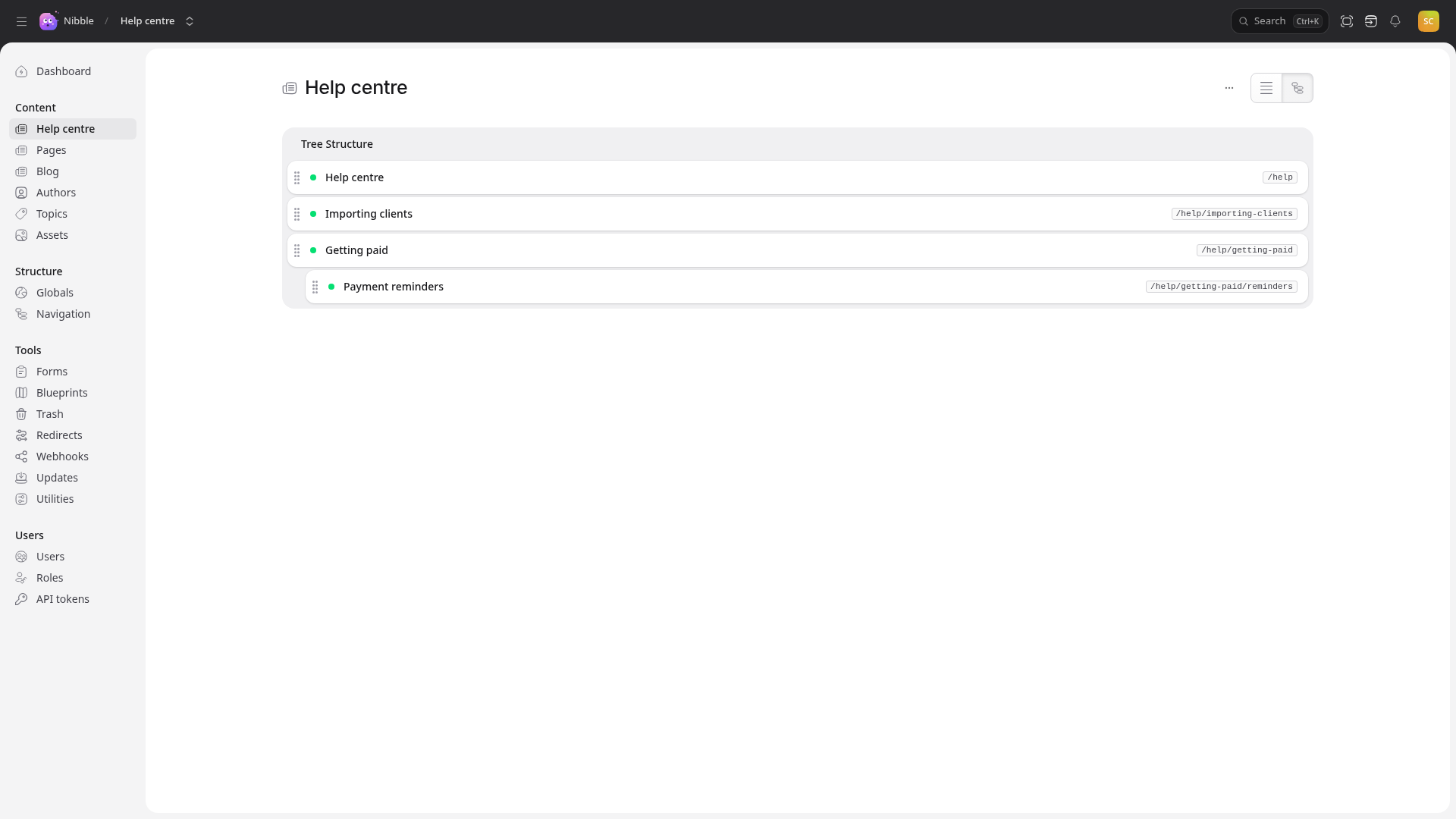
The help centre is listed like any collection, in a list or as a tree that follows the folders:
Opening a page shows its fields, locked, and names the file it is written in:
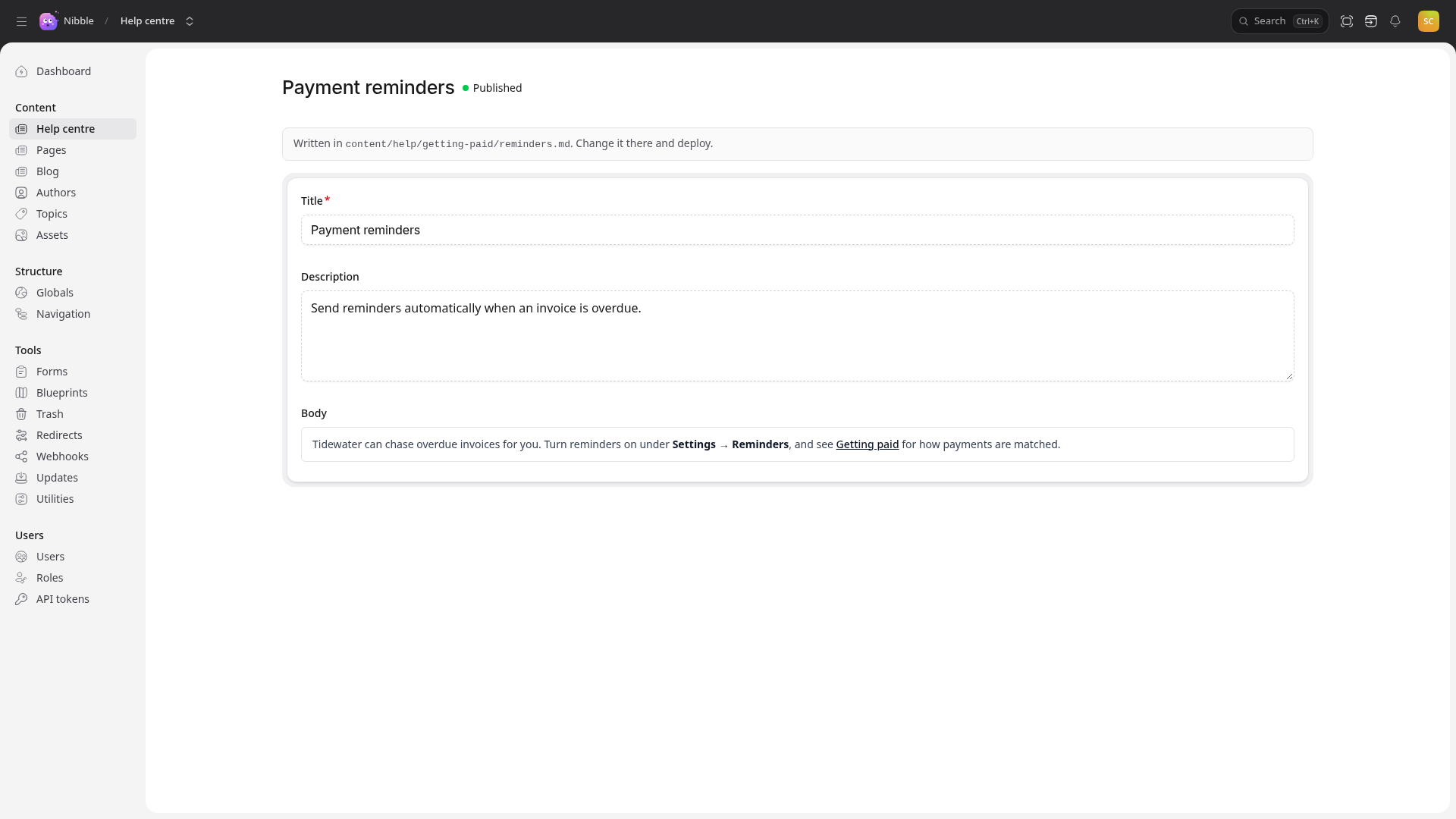
Nothing offers to create, publish, move or trash a file’s page — the file is the truth, and an edit in the control panel would be thrown away on the next deploy.
Note
A row saved at an address a file already holds is refused, so a page in the control panel can never shadow a help article.
7. What else sees the files
| Sees file pages? | |
|---|---|
| Routing and views | yes |
Queries — from: entries:help, where, not, sort, paginate |
yes; a filter on a relation is refused, since files have no relations |
/sitemap.xml |
yes |
| The navigation with the collection’s handle | yes, built from the folders |
| Site search | yes, indexed on every deploy and, in development, as soon as a file changes |
| Atom feeds | no |
| The dashboard’s counts | yes, every page counted as published |
8. When not to use it
Use it for content that belongs with the code: product help, reference, a changelog — anything reviewed in the same pull request as what it describes.
Do not use it for content people who do not use git need to change. Tidewater’s blog and landing pages stay in the control panel, because a locked page is a frustrating answer to marketing asking to fix a sentence.