Editing content
Assets
Upload images and files once and use them anywhere — folders, focal points, alt text, and checking what uses an asset before deleting it.
An asset is a file you have uploaded: a screenshot of the product, a team photo, a PDF price list. You upload it once and use it anywhere.
After reading this guide, you will know:
- How to upload and organise files.
- How one image serves every size the site needs.
- Why alt text belongs on the asset.
- How to check what uses an asset before deleting it.
1. The library
Assets, in the sidebar, is the library.
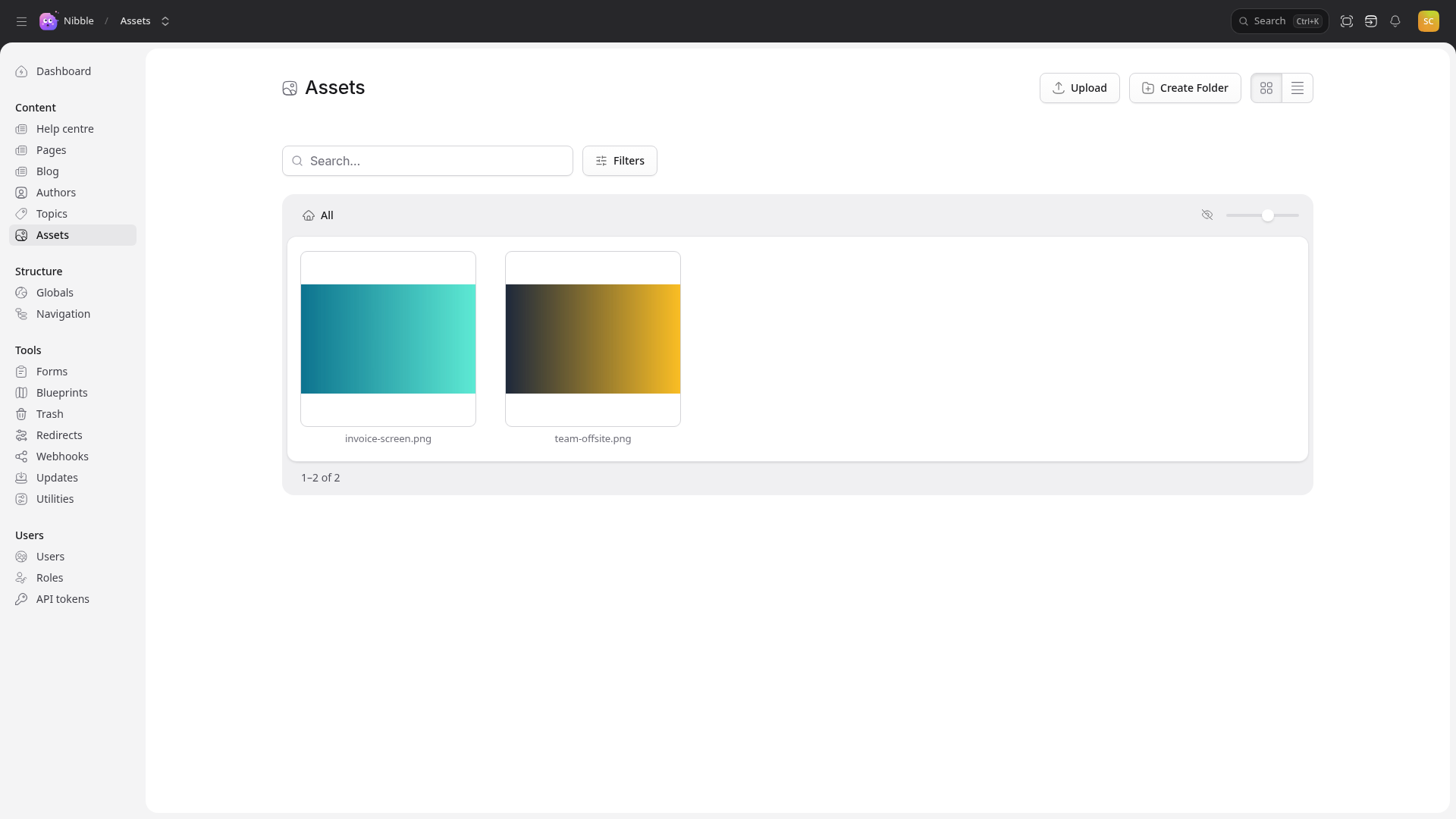
- Upload, or drag files onto the page. Several at once is fine.
- Create Folder to organise them —
product/,team/andblog/, say. - Search finds files by name, title and alt text; Filters narrow by type.
- Switch between a grid of thumbnails and a list with the buttons at the top right.
What may be uploaded, and how large, is set by the site. If a file is refused, the message says which rule it broke.
2. One image, every size
Upload the largest, best version you have. The site never sends that file to a visitor: it asks for a named size — a card in the blog listing, a wide hero on a landing page, a share image — and Nibble makes each one from your original, on demand, and keeps it.
Set a focal point on an image: the part that must never be cropped out, usually a face or the interesting corner of a screenshot. Every size keeps it in frame, so the same photo works as a wide banner and as a square card without uploading it twice.
Tip
Changing a focal point or a crop takes effect straight away. The site asks for the new version by a new address, so nobody is left looking at a stale image.
Important
Some fields insist on alt text before they accept an image. It is the single most useful thing you can do for someone using a screen reader, and it costs one sentence: “The invoice screen, with the Send reminder button highlighted.”
4. Using an asset
Wherever an entry has an image or file field, choosing it opens this same library — you pick something that exists rather than uploading another copy. An image placed in rich text is a reference to the asset, not a copy.
That is the part worth remembering: replace the asset, and every page using it follows. A new logo is one upload, not a hunt through forty pages.
Video gets a thumbnail generated automatically. Documents and other files work the same way, without the image tools.
5. Before you delete
Each asset shows what uses it. Check that list before deleting.
Warning
If something still uses an asset, deleting it takes the image off that page at once. Deleted assets go to the trash like entries, so a mistake can be undone for as long as the trash keeps them.