Editing content
Editing content
A tour of the control panel for the people who write the site — the dashboard, the sidebar, search and your account.
This section is for you if you write the site. At Tidewater that is the marketing team: you write the blog, build
landing pages and answer demo requests, and you never need to open a terminal. Everything here happens in the
browser, at /admin.
After reading this guide, you will know:
- What is on the dashboard, and how to change it.
- How the sidebar is organised, and why yours may differ from a colleague’s.
- How to search everything.
- Where your account, sessions and two-factor authentication live.
- The two ideas that make the rest of the control panel make sense.
Note
Nothing in this section needs a terminal, and nothing here can break the site’s code. The worst an editor can do is publish something they did not mean to — and that can always be undone.
1. The dashboard
Signing in lands on the dashboard: what has been published and edited lately, form submissions, uploads, and the entries changed most recently.
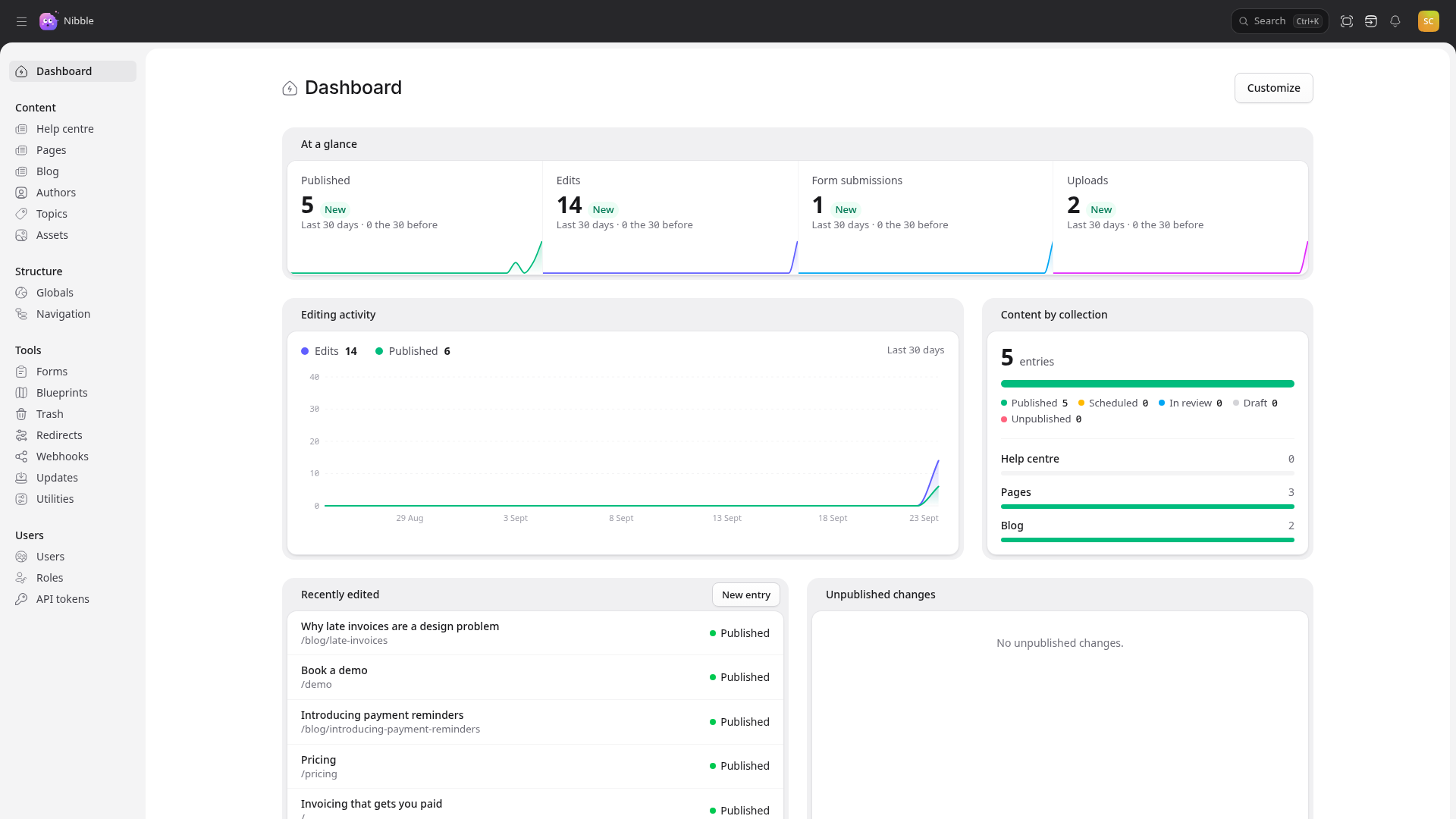
Choose Customize to add, remove and rearrange widgets. Top missing pages is worth adding: it lists the addresses visitors asked for and did not find. See Redirects and SEO.
2. The sidebar
| Group | Holds |
|---|---|
| Content | each collection — Tidewater’s Help centre, Pages and Blog — its taxonomies, Authors and Topics, and Assets |
| Structure | Globals and Navigation — the site’s settings and menus |
| Tools | Forms, Blueprints, Trash, Redirects, Webhooks, Updates and Utilities |
| Users | Users, Roles and API tokens |
You only see what your role allows. A shorter sidebar than a colleague’s is not a fault; it is the role you were given. See Users and roles.
3. Search
Search at the top of every screen — or Ctrl-K — finds entries, terms, assets and screens by what is in them, not
only by title.
4. Your account
The circle with your initials, top right, opens your account: your name and password, the devices you are signed in on, and two-factor authentication.
Tip
Turn on two-factor authentication. An editor account can publish to the public site; a stolen password should not be enough to do that.
Two things happen automatically, and are worth knowing before they surprise you:
- Sensitive screens ask for your password again — users, roles, API tokens, imports.
- After a while without activity you are locked out until you enter your password again. A “Your Session is Expiring” warning comes first, with an Extend Session button, so nothing you are writing is lost.
5. Two ideas worth five minutes
Collections and blueprints. A collection is a kind of content: Pages, Blog, Help centre. A blueprint is the list of fields one of those has. Both are decided by whoever builds the site, which is why the form you see fits the content rather than being one big text box. If a field is missing or confusing, that is a conversation with them — and usually a small change.
Nothing is lost. Saving a live page creates a draft rather than changing the site. Every publish keeps a revision you can go back to. Deleting moves things to the trash, where they wait before disappearing. You would have to work quite hard to lose anything.
6. Pages you cannot edit
Tidewater’s Help centre opens like any other collection, but its pages are locked, and each one says which file it is written in. That is deliberate: the help centre is written in files, alongside the product’s code, and an edit here would be overwritten at the next deploy. Ask whoever writes it. See Content as files.
7. The guides in this section
| Guide | Covers |
|---|---|
| Entries | writing a page or a post, its fields, its URL, deleting it |
| Drafts and publishing | drafts, previews, publishing, scheduling, review and revisions |
| Assets | uploading images and files, cropping, alt text |
| Navigation | building the menus |
| Form submissions | what people sent, and exporting it |
| Redirects and SEO | search results, share cards, redirects and missing pages |