Editing content
Entries
Find, write and organise pages and posts — the listing, the editor, URLs, nesting and the trash.
An entry is one piece of content: a landing page, a blog post, a customer story. This guide follows you writing Tidewater’s announcement of payment reminders.
After reading this guide, you will know:
- How to find entries, and make the listing show what you need.
- How to write one, and what the editor’s tabs hold.
- Where an entry’s URL comes from, and what happens when it changes.
- How pages are nested and ordered.
- How deleting and restoring work.
1. The listing
Open a collection in the sidebar — Blog — and its entries are listed.
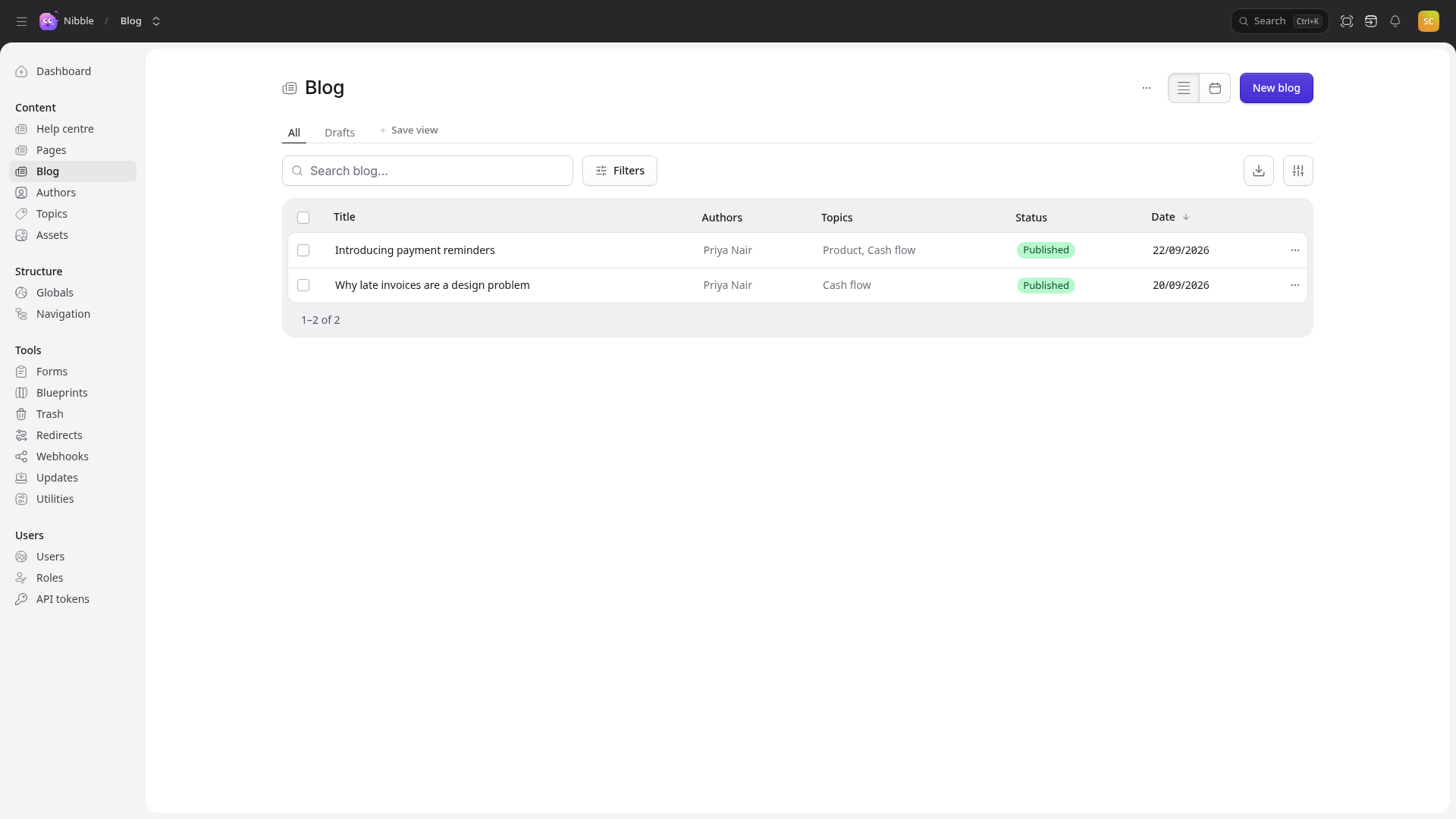
- Search narrows the list by title as you type.
- Filters narrow it by status, blueprint, locale, author or topic. Save view keeps a combination you use often as a tab beside All and Drafts.
- The columns button, on the right, chooses which fields are shown. Your choice is remembered.
- The download button beside it exports the list as a CSV file.
- Click a column heading to sort by it.
Tick entries to act on several at once: publish, unpublish, move, add a topic or move to the trash.
Note
What you see is what you may do. If your role cannot publish, there is no Publish button — not a button that tells you off when you press it.
Structured collections, such as Pages, also have a tree view, and dated ones, such as Blog, a calendar. Switch between them with the buttons at the top right.
2. Writing an entry
Choose the button at the top right — New blog here; its label is made from the collection’s title — and the editor opens:
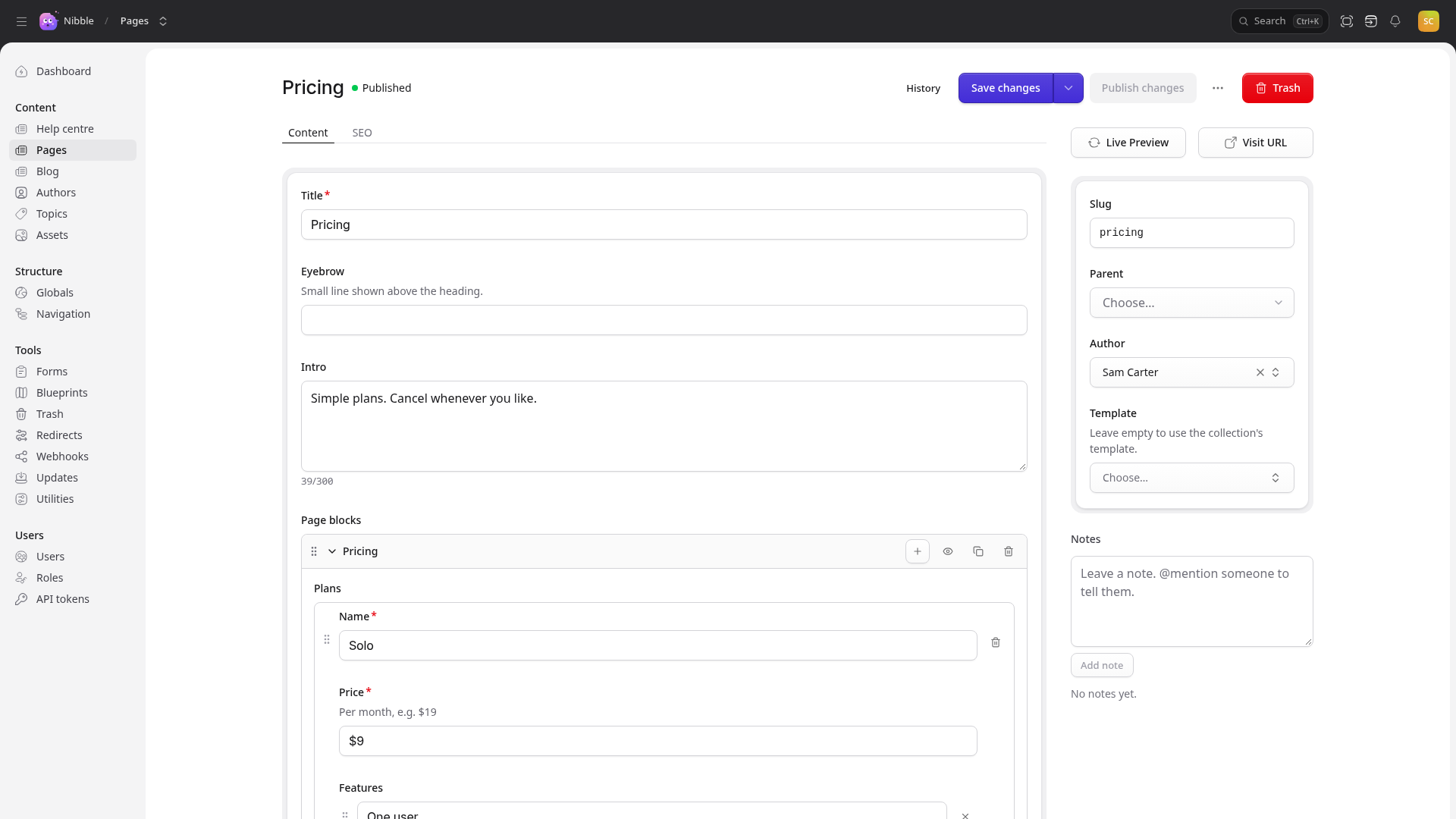
The fields come from the entry’s blueprint, written for this site. Tidewater’s posts have:
| Where | Holds |
|---|---|
| Content tab | the title, an excerpt and the body |
| SEO tab | how the post looks in search results and when shared — see Redirects and SEO |
| the column on the right | the slug, the publish date, the author, topics, featured image and template — and the parent page in a structured collection |
On a narrow screen the right-hand column folds into a tab of its own, called Details.
Below it, Notes is for the team: leave one, and @mention someone to tell them. Notes never reach the site.
Fields with a red asterisk are required. The form tells you what is missing when you save, rather than failing silently.
Some fields worth knowing by name:
| Field | What to expect |
|---|---|
| Rich text | a full editor: headings, lists, links, images, tables, code and find-and-replace |
| Markdown | plain Markdown, with a Preview button that shows exactly what the site will render |
| Assets | opens the media library, so you choose an image rather than upload another copy |
| Entries / Terms | a picker for other entries or terms — an author, a topic, related posts |
| Page blocks | build a page from blocks in any order: text, quote, call to action, image, gallery, pricing |
Important
Saving does not publish. Save as often as you like; the site does not change until you publish. See Drafts and publishing — it is the one thing most worth understanding on your first day.
3. URLs
An entry’s address comes from two things: the pattern its collection uses — Tidewater’s blog is /blog/{slug} — and
the entry’s slug, the readable part. The slug is filled in from the title as you type, and you can change it in the
column on the right.
Change the slug of an entry that is already live, and Nibble records a redirect from the old address to the new one. Links you have shared, other sites linking to you and search results all keep working. You can see the redirect under Redirects.
Tip
Title your post “Introducing payment reminders” and the slug comes out as
introducing-payment-reminders. Shorter slugs read better in a shared link — payment-reminders — and it is
cheapest to change one before the post is first published.
4. Nesting and ordering pages
In a structured collection — Pages — entries sit under one another. Use the tree view to drag a page under
another, or choose its Parent in the column on the right. The URL follows the structure, so moving /integrations
under /features makes it /features/integrations, with a redirect recorded from the old address.
The page whose slug is home, at the top level, is the site’s home page.
5. Deleting and restoring
Trash, at the top right of the editor, moves the entry to the trash. It leaves the site at once, and waits in Tools → Trash, where it can be restored — URL and all — until the trash is emptied, 30 days later unless the site says otherwise.
A page with pages under it cannot be trashed until they are moved or trashed first.
Warning
If other entries link to the one you are trashing — a menu, a related post — Nibble lists them and asks you to confirm. Those links break until you restore the entry or point them somewhere else.